

Junie uses the same MCP JSON configuration in JetBrains IDEs and Junie CLI. That makes a Backlog integration unusually portable: configure it once at user or project scope, inspect its status in PhpStorm, and use the same server from Junie’s terminal interface.
Verified: September 2, 2026 using current Junie documentation. This is about Junie consuming the Backlog MCP server—not PhpStorm’s separate ability to expose IDE tools as an MCP server.
Prerequisites
- PhpStorm with Junie installed and signed in.
- A Backlog API key created under Personal Settings → API.
- Node.js 22 or newer.
- The absolute path to
npx, found withcommand -v npx.
On an M2 Mac using Homebrew, the path is normally /opt/homebrew/bin/npx. JetBrains applications launched from the Dock may not share your interactive zsh PATH, so the absolute path matters.
Add the server in PhpStorm
Open Settings → Tools → Junie → MCP Settings. Click the add button; Junie opens the relevant mcp.json.
Choose the scope deliberately:
- User:
~/.junie/mcp/mcp.json, private to your macOS account and available to all projects. - Project:
.junie/mcp/mcp.json, shareable with the repository but unsafe for literal credentials.
For a personal API key, use the user file:
{
  "mcpServers": {
    "backlog": {
      "command": "/opt/homebrew/bin/npx",
      "args": ["-y", "backlog-mcp-server@0.20.0"],
      "env": {
        "BACKLOG_DOMAIN": "YOUR-SPACE.backlog.com",
        "BACKLOG_API_KEY": "YOUR_BACKLOG_API_KEY",
        "ENABLE_TOOLSETS": "space,project,issue"
      }
    }
  }
}
Junie imports manually added configurations and enables them by default. Back in MCP Settings, the server row should show its scope, connection status, and available tools.
Junie CLI alternative
Run /mcp in Junie CLI. The current installation assistant can add a local server, choose project or user scope, collect required environment values, and verify startup. Junie CLI and the IDE read the same files, so a server added here should appear in PhpStorm.
In ACP clients, /mcp is a read-only listing. Edit .junie/mcp/mcp.json or use Junie’s interactive TUI if you need to change configuration.
Verify before editing
Junie reports servers as Starting, Active, Inactive, Disabled, Failed, or Authorization required. Inactive can simply mean a valid server is not currently running; Failed indicates startup, authentication, dependency, or runtime failure.
Start with read-only prompts:
Use Backlog MCP get_myself. Report the authenticated user and make no changes.
Use get_space, then get_issue for DEMO-123. Summarize the ticket and comments.
Do not edit the project or Backlog.
Confirm the identity and issue against Backlog in your browser. If either is unexpected, stop and correct the configuration rather than continuing.
A PhpStorm-native issue workflow
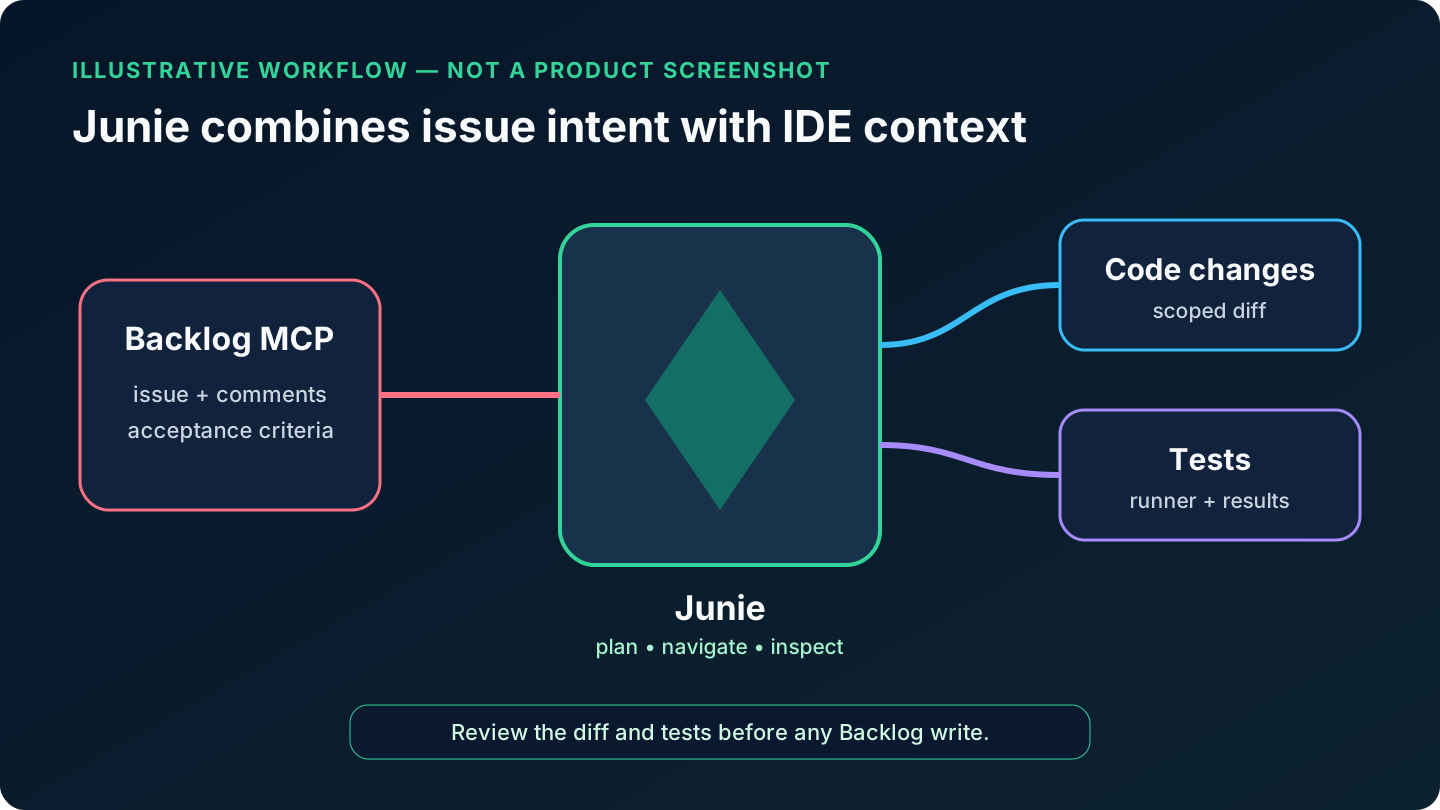
Junie can combine Backlog context with its understanding of the open project, code navigation, inspections, and test runner. Keep the workflow staged.
Stage 1: acceptance-criteria map
Read Backlog issue DEMO-123 and every comment. Inspect this PhpStorm project.
Do not modify anything. Produce a table mapping each acceptance criterion to
the likely class/function, proposed change, and test. Flag contradictions.
This prevents a vague ticket summary from turning directly into a broad code edit.
Stage 2: implementation and tests
Implement only the approved plan for DEMO-123. Follow existing project style.
Run the narrowest relevant tests first, then the affected suite. Do not call
any Backlog write tool. Summarize changes and show failing output verbatim.
Review Junie’s diff and test results inside PhpStorm. For PHP projects, pay particular attention to generated files, database migrations, framework caches, and test fixtures—areas where an agent can make technically valid but operationally surprising changes.
Stage 3: controlled write-back
Draft a Backlog comment for DEMO-123 containing the implementation summary,
tests run, results, and follow-up work. Do not post it.
Once approved:
Post exactly the approved text with add_issue_comment. Make no other Backlog change.
Keep status, assignee, and milestone changes in separate prompts. Those fields encode team process, not just implementation state.
A safer team configuration
A project-scoped .junie/mcp/mcp.json is convenient, but a committed env block can leak credentials. Three defensible patterns are:
- Commit documentation only; let each developer create the user-scoped server.
- Commit a project config with a non-secret launcher and provision credentials through your organization’s secret manager.
- Host Backlog MCP over authenticated HTTPS with Backlog OAuth, so each user signs in individually.
For the remote option, Nulab’s server supports an OAuth-backed Streamable HTTP deployment. It requires TLS and real service hardening; its in-memory client registrations and tokens are lost when the server restarts, so evaluate that limitation before treating it as production infrastructure.
Troubleshooting Junie and PhpStorm
The server is Failed. Open the server details, check the failure message, validate the JSON, and run the configured command in Terminal. Confirm Node 22+ and an absolute npx path.
The config works in Terminal but not PhpStorm. This is usually environment inheritance. Replace npx with /opt/homebrew/bin/npx (or your actual path) and avoid relying on shell startup files.
The server is Inactive. Trigger a read-only MCP request or enable/start it from the MCP list. Inactive is not the same as failed.
No Backlog tools appear. Check the spelling of mcpServers, restart the server after saving, and ensure ENABLE_TOOLSETS contains space,project,issue.
Authentication is rejected. The domain must be a hostname without scheme or path. Confirm the key under Backlog Personal Settings and verify that its user can access the project.
The IDE and CLI show different results. Confirm both are running as the same macOS user and inspect both the project and user configuration. Use /mcp to see the source/scope of each server.
Junie chooses an unexpected write tool. Stop the run, reduce enabled toolsets, state “read-only” in the prompt, and require the exact draft to be shown before any external write.
Sources
- Junie MCP Settings
- Junie CLI MCP configuration
- Junie IDE plugin documentation
- Nulab Backlog MCP Server
- Backlog API getting started
Previous: Part 2 — Using the Backlog MCP Server with Cursor
Next: Part 4 — Using the Backlog MCP Server with Warp



Conversation
Leave the first comment