
The Problem
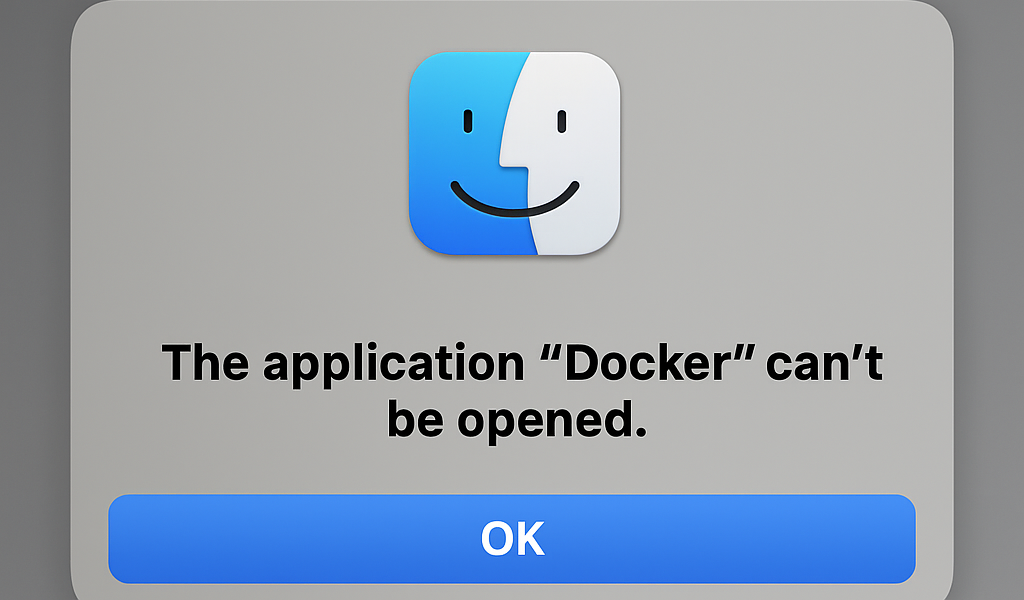
Have you ever encountered this frustrating error when trying to launch Docker Desktop on macOS?
Docker Desktop cannot be opened because of a problem.
Or perhaps you see this error in your terminal:
Cannot connect to the Docker daemon at unix:///Users/username/.docker/run/docker.sock. Is the docker daemon running?
If you’re nodding your head, you’re not alone. This is one of the most common Docker Desktop issues on macOS, and it can be particularly frustrating when you’re in the middle of development work.
Understanding the Root Cause
The “Launch failed” error (specifically error code 163: “Launchd job spawn failed”) typically occurs due to:
- Corrupted Docker Desktop installation – Files may have become corrupted during updates or system crashes
- Permission issues – macOS security restrictions or incorrect file permissions
- Conflicting background processes – Old Docker processes interfering with new launches
- Incomplete uninstallation – Remnants from previous Docker installations causing conflicts
- System security restrictions – macOS Gatekeeper or SIP (System Integrity Protection) blocking execution
The Solution: Complete Uninstall and Reinstall
While there are several quick fixes you might find online (like restarting your Mac or clearing Docker’s cache), the most reliable solution for persistent launch issues is a complete uninstall and reinstall. Here’s the comprehensive approach that works:
Step 1: Stop All Docker Processes
First, we need to ensure no Docker processes are running:
# Kill Docker Desktop processes
pkill -f "Docker Desktop" || echo "No Docker Desktop processes found"

# Kill Docker helper processes (requires sudo)
sudo pkill -f "com.docker"
Step 2: Remove Docker Desktop Application
# Remove the main application
sudo rm -rf /Applications/Docker.app
Step 3: Clean Up Docker Data and Configuration
This is the crucial step that many quick fixes miss. We need to remove all Docker-related data:
# Remove Docker group containers
rm -rf ~/Library/Group\ Containers/group.com.docker

# Remove Docker user data (may require manual deletion if protected)
rm -rf ~/Library/Containers/com.docker.docker

# Remove Docker CLI configuration
rm -rf ~/.docker

# Remove Docker Desktop support files
rm -rf ~/Library/Application\ Support/Docker\ Desktop
Note: Some files in ~/Library/Containers/com.docker.docker may be protected by macOS and require manual deletion through Finder with administrator privileges.
Step 4: Remove Docker Helper Tools and Services
Docker installs system-level services that need to be removed:
# Remove privileged helper tools
sudo rm -f /Library/PrivilegedHelperTools/com.docker.vmnetd

# Remove launch daemon configuration
sudo rm -f /Library/LaunchDaemons/com.docker.vmnetd.plist

# Unload any remaining services
sudo launchctl unload /Library/LaunchDaemons/com.docker.vmnetd.plist 2>/dev/null || echo "Service not loaded"
Step 5: Download and Install Fresh Docker Desktop
Now for the clean installation:
# Download latest Docker Desktop for Apple Silicon Macs
curl -L -o ~/Downloads/Docker.dmg "https://desktop.docker.com/mac/main/arm64/Docker.dmg"

# For Intel Macs, use this URL instead:
# curl -L -o ~/Downloads/Docker.dmg "https://desktop.docker.com/mac/main/amd64/Docker.dmg"

# Mount the DMG
hdiutil attach ~/Downloads/Docker.dmg

# Copy Docker to Applications
sudo cp -R /Volumes/Docker/Docker.app /Applications/

# Unmount the DMG
hdiutil detach /Volumes/Docker

# Clean up the installer
rm ~/Downloads/Docker.dmg
Step 6: Launch and Verify
# Launch Docker Desktop
open /Applications/Docker.app

# Wait for Docker to start (usually takes 15-30 seconds)
sleep 15

# Verify installation
docker --version
docker info

# Test with a simple container
docker run hello-world
Expected Results
After a successful reinstall, you should see:
$ docker --version
Docker version 28.4.0, build d8eb465

$ docker info
Client:
 Version:    28.4.0
 Context:    desktop-linux
 Debug Mode: false
 # ... more info

Server:
 Containers: 0
  Running: 0
  Paused: 0
  Stopped: 0
 # ... server details
Alternative Solutions
Option 1: Docker via Homebrew
If Docker Desktop continues to give you trouble, consider using Docker Engine via Homebrew:
# Install Docker CLI and Compose
brew install docker docker-compose

# Install Colima for container runtime
brew install colima

# Start Colima
colima start

# Now you can use docker commands
docker run hello-world
Option 2: Quick Fixes (Try These First)
Before going nuclear with a complete reinstall, you can try these simpler solutions:
# Reset Docker to factory defaults
rm ~/Library/Group\ Containers/group.com.docker/settings.json

# Clear quarantine attributes
xattr -d com.apple.quarantine /Applications/Docker.app 2>/dev/null || echo "No quarantine found"

# Repair Docker installation
sudo /Applications/Docker.app/Contents/MacOS/install --user=$USER
Prevention Tips
To avoid this issue in the future:
- Keep Docker Desktop updated – Enable automatic updates in Docker Desktop settings
- Proper shutdown – Always quit Docker Desktop properly rather than force-quitting
- Monitor system resources – Ensure adequate disk space and memory
- Regular maintenance – Periodically clean up unused containers and images:
docker system prune -a
When to Use Each Approach
- Try quick fixes first if this is your first encounter with the issue
- Use complete reinstall if quick fixes fail or you’ve had recurring issues
- Consider Homebrew alternative if you prefer command-line tools and don’t need the GUI
Conclusion
Docker Desktop launch issues on macOS can be frustrating, but they’re almost always solvable with a systematic approach. The complete uninstall and reinstall method might seem heavy-handed, but it’s the most reliable way to ensure a clean, working Docker environment.
The key is being thorough in the cleanup process—removing not just the application, but all associated data, configuration files, and system services. This gives you a truly fresh start and resolves the underlying corruption or conflicts that caused the original issue.
Remember to keep your Docker Desktop updated and follow proper shutdown procedures to minimize the chance of encountering this issue again.
Have you encountered other Docker Desktop issues on macOS? Feel free to share your experiences and solutions in the comments below.



Conversation
Leave the first comment